How to Track AI Traffic in Google Analytics for Your Ecommerce Store
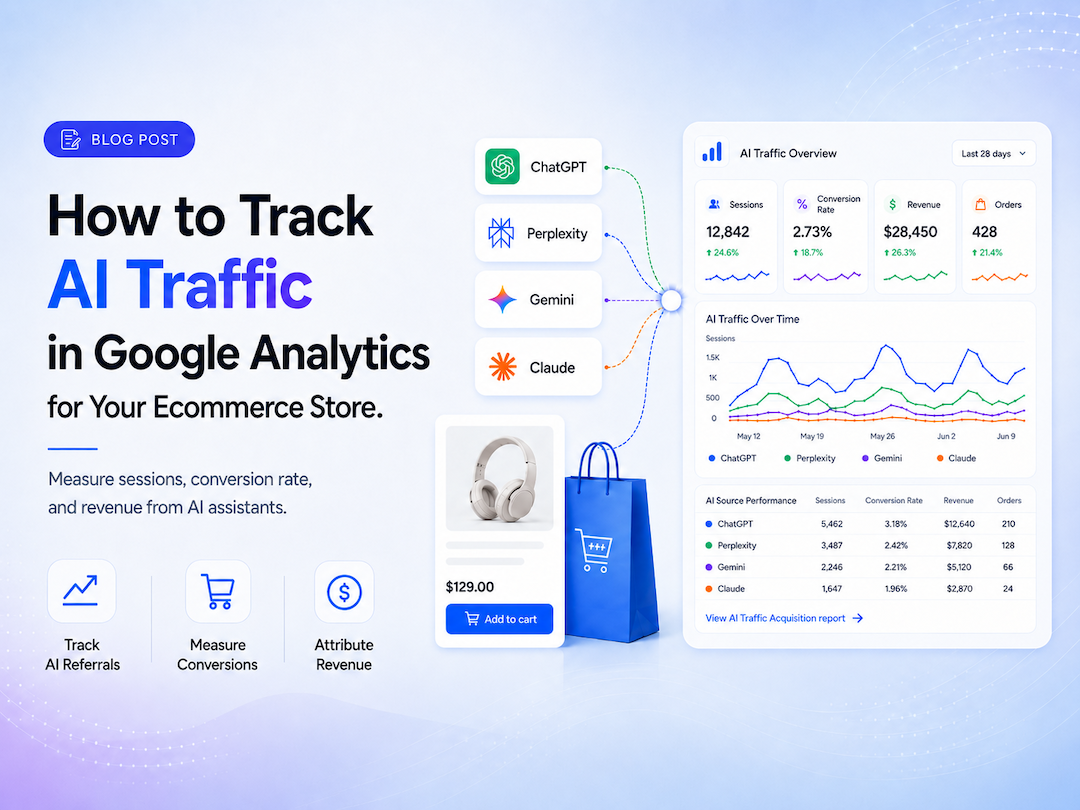
AI tools like ChatGPT, Perplexity, and Gemini are sending shoppers to ecommerce stores right now — and those shoppers convert at dramatically higher rates than visitors from traditional search. The problem is that Google Analytics buries most of that traffic inside other channels by default, so you can't see the visits, can't measure the conversion rate, and can't act on the data. This guide walks through two methods for tracking AI traffic in Google Analytics, including how to add ecommerce conversion rate to the report so you can see what that channel is actually worth.
If you'd rather have someone configure this and interpret the results for you, that's a service we offer — but everything below can be done by a store owner without a developer.
Why ecommerce stores need to track AI traffic now
For most stores, AI traffic is still a small percentage of total sessions. That's exactly why the conversion rate data matters more than the raw visit count.
AI visitors convert at a measurably higher rate than other channels. According to Adobe's 2026 ecommerce data, AI traffic to U.S. retail sites converted 42% better than non-AI traffic in March 2026 — a new record — while total AI referral traffic to retail sites grew 393% year over year in Q1 2026. These aren't casual browsers. Someone who reads a ChatGPT recommendation, clicks through to a product, and lands on your store is several steps deeper into a buying decision than someone who clicked a Google result.
Three things follow from that:
If AI is recommending your products, you want to know which tools, which pages, and at what conversion rate — so you can do more of whatever is working.
If AI is sending traffic that doesn't convert, you have a product-page or landing-page problem worth diagnosing.
If competitors show up in AI answers and you don't, that gap will compound. Visibility in AI tools is increasingly behaving like a channel, and the best time to start measuring it is before it becomes a major traffic source.
The honest limitation: GA4 only sees part of AI traffic
Google Analytics can only attribute a visit to an AI source if the visitor's browser passes along a "referrer" tag identifying where the click came from. Studies suggest roughly 60–80% of real AI-originated visits carry that tag; the rest arrive without one and get filed under Direct traffic, where they're invisible to channel analysis.
One partial improvement: since mid-2025, ChatGPT has appended utm_source=chatgpt.com to some of its outbound links, making a portion of those visits trackable even when the referrer header is missing. You may see this UTM appearing in your GA4 source data alongside referrer-based traffic.
The takeaway: any AI traffic number you see in Google Analytics is a floor estimate, not the ceiling. It's still the most actionable view available inside the platform.
Method 1: Check Google Analytics' built-in AI Assistant channel first
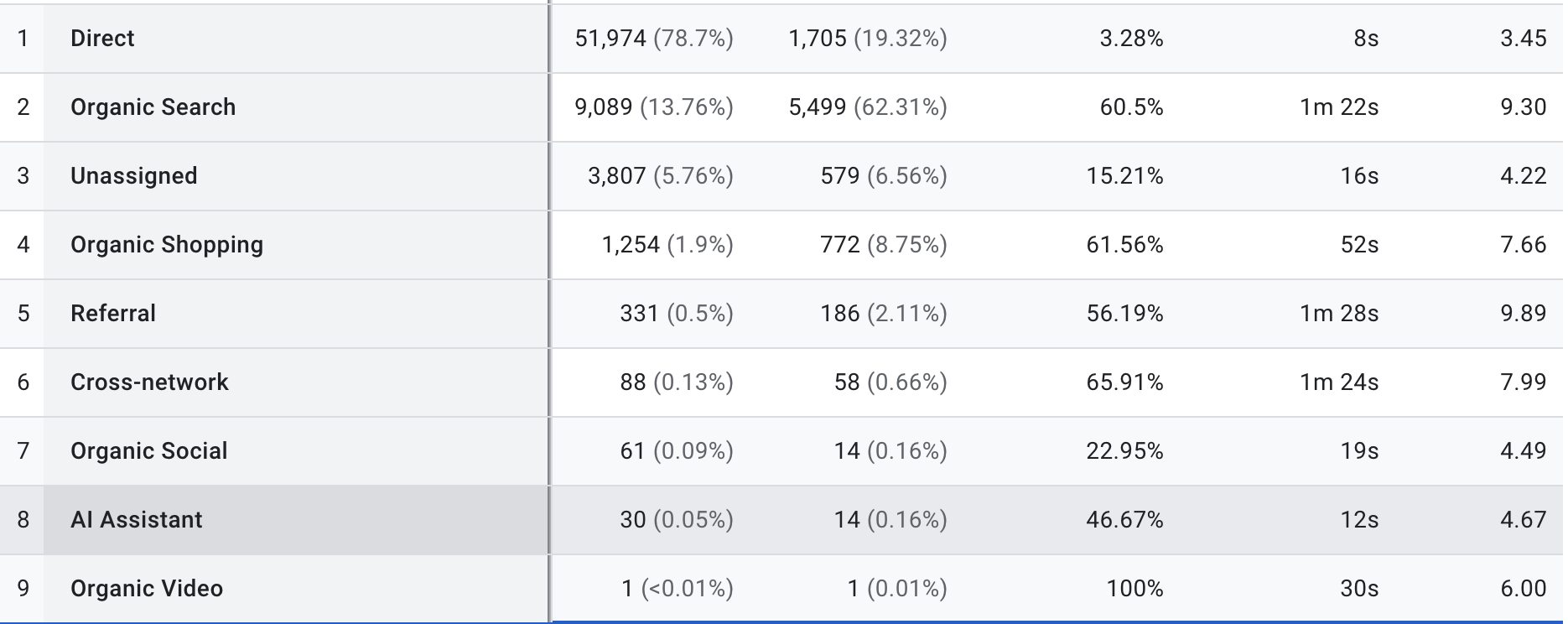
Most tutorials on this topic describe a manual setup process that's now optional for many stores. As of May 13, 2026, Google added a native AI Assistant channel directly to GA4's Default Channel Group. When Google Analytics detects a visit from a recognized AI assistant — ChatGPT, Gemini, Claude, and others — it automatically classifies it under "AI Assistant," sitting alongside Organic Search, Direct, and Paid Search in your reports. No regex, no configuration required.
To check if it's already active in your property:
In GA4, go to Reports > Acquisition > Traffic acquisition.
In the table below the chart, use the dimension dropdown to select Session default channel group.
Scan for an AI Assistant row.
If the row is there, you already have AI traffic separated out. The next step — covered in the section below — is adding conversion rate and revenue columns so the visits are worth analyzing.
If you don't see the row yet, it may mean your property hasn't received enough recognized AI traffic to trigger the classification, or the rollout hasn't fully reached your property. In either case, Method 2 gives you full control.
Method 2: Build a custom AI channel group in Google Analytics
The manual method still has a genuine advantage: you decide exactly which AI sources count, including newer tools Google doesn't yet recognize. The setup takes about 10 minutes.
Before you start: Google Analytics' free version allows only two custom channel groups per property, and you cannot edit the Default Channel Group — that's why this is built as a separate group rather than a modification. If you're going to use one of your two slots, AI traffic is a reasonable choice.
Step 1: Create the channel group
Go to Admin > Data display > Channel groups.
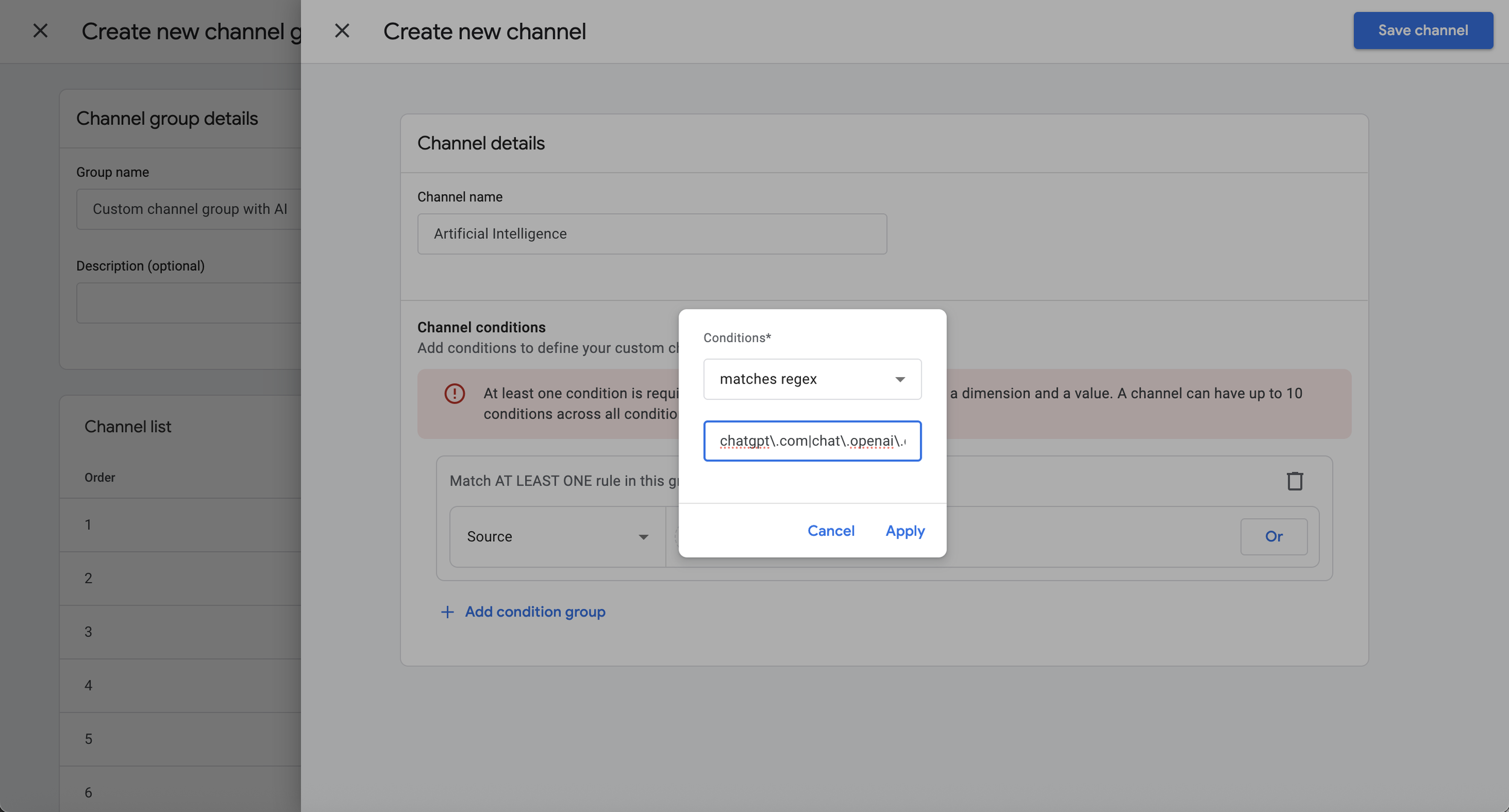
Click Create new channel group and name it something like "Custom channel group with AI."
Inside the new group, click Add new channel.
Name the channel Artificial Intelligence (the full name, not "AI," makes report filtering cleaner later).
Step 2: Set the AI source condition with a focused regex
Set the condition to Source matches regex, then paste in a pattern covering the major AI tools that actually send ecommerce traffic:
chatgpt\.com|chat\.openai\.com|gemini\.google\.com|perplexity(?:\.ai)?|claude\.ai|copilot\.microsoft\.com|deepseek\.com|(?:\w+\.)?meta\.ai|grok\.com|x\.ai|(?:\w+\.)?mistral\.ai|you\.com|phind\.com
Keep this list tight. Longer patterns that sweep in dozens of obscure tools inflate your AI traffic numbers with visits from developer tools, API playgrounds, and research workflows — none of which represent shoppers. Review and update the list quarterly as new consumer AI platforms emerge.
Step 3: Reorder — move AI above Referral
This is the most commonly missed step. GA4 processes channel rules from top to bottom and assigns each session to the first matching rule, then stops. Because AI visits technically arrive as referrals, any "Referral" rule sitting above your AI rule will claim those sessions first, leaving your AI channel empty.
After saving, your new channel appears at the bottom of the list by default. Click Reorder and drag Artificial Intelligence above Referral. Specific rules above general ones, always.
Step 4: Give it a few days, then verify
Custom channel groups collect data from the moment you create them — they don't backfill. Check back after a few days, go to Reports > Acquisition > Traffic acquisition, and change the dimension dropdown to Session custom channel group to see your AI line item.
| Method 1: Built-in AI Assistant channel | Method 2: Custom channel group | |
|---|---|---|
| Setup required | None — automatic since May 2026 | ~10 minutes in GA4 Admin |
| AI tools covered | ChatGPT, Gemini, Claude + others Google recognizes | Any tool you add to the pattern |
| Maintenance | Google maintains it | You update it quarterly |
| Custom group slots used | 0 of 2 | 1 of 2 |
| Best for | Most stores — start here | Stores wanting broader or custom coverage |
| Conversion rate reporting | Same for both — see the next section | |
How to add ecommerce conversion rate to your AI traffic report
Visit counts tell you very little. The metric that actually matters is Session conversion rate — the percentage of sessions from each channel that result in a purchase. Here's how to add it.
Step 1: Confirm purchase tracking is working in GA4
GA4 can only report conversion rates if it's capturing purchase events from your store. Go to Reports > Monetization > Overview and confirm that revenue and purchases are populating. If those numbers are blank or wrong, the conversion rate data will be wrong too — and this is a platform-specific problem:
Shopify: Ecommerce tracking runs through the GA4 sales channel in your Shopify admin. Checkout-level events often need attention depending on your theme — standard Shopify GA4 setup handles this but custom checkouts frequently have gaps.
BigCommerce: Native GA4 integration covers core purchase events, but custom themes and headless storefronts need explicit verification that checkout events are firing correctly. BigCommerce SEO setup typically includes a tracking audit.
Squarespace: GA4 connects through Squarespace's analytics settings, but purchase-event tracking is more limited than on dedicated ecommerce platforms. Most Squarespace stores need to verify that conversion events are actually hitting GA4 rather than assuming the connection is complete. See Squarespace SEO setup.
Shift4Shop: You have full control over tracking code placement, which is an advantage — but it means purchase events need to be configured deliberately rather than assumed. Shift4Shop SEO setup includes verifying that GA4 events match actual order data.
If purchase tracking isn't working, fix that first. Everything downstream — AI conversion rate, channel attribution, revenue by source — depends on it.
Step 2: Customize the Traffic Acquisition report to show conversion rate
Go to Reports > Acquisition > Traffic acquisition.
Click Customize report (top right — Editor or Admin access required).
In the Filters panel, add a filter: Session default channel group exactly matches AI Assistant (or use Session custom channel group if you built Method 2).
In the Metrics panel, add:
Session conversion rate — filter this to the purchase event to see the ecommerce conversion rate specifically
Ecommerce purchases
Total revenue
Set Session source as the primary dimension so you can see which individual AI tool (ChatGPT vs. Perplexity vs. Gemini) is converting best.
Save as a new report — "AI Ecommerce Performance" — so it's accessible from the sidebar with one click.
This report now shows you, for each AI source: how many sessions arrived, what percentage purchased, how many total purchases, and total revenue. That's the view that turns "AI traffic" from a curiosity into something you can act on.
What good AI conversion rate looks like for ecommerce stores
Adobe's Q1 2026 retail data puts AI traffic converting 42% better than non-AI traffic on average. If your overall store conversion rate is around 2%, a well-attributed AI channel should be closer to 2.8–3%. If it's lower, it points to a landing-page mismatch: the AI is sending buyers, but the page they land on isn't closing them. If it's much higher, it's a signal to look at which AI tools and which queries are driving it, because that's where your GEO content investment should go.
Decision guide: which method is right for your store
| Your situation | What to do |
|---|---|
| AI Assistant channel already shows in your reports | Use Method 1 — skip to adding Session conversion rate |
| No AI Assistant row visible yet | Set up Method 2 now so it collects data while you wait |
| Want to track newer AI tools (DeepSeek, Grok, etc.) | Method 2 — add those domains to the regex |
| AI traffic visible but conversion rate shows zero | Purchase tracking isn't configured correctly — fix that first |
| AI conversion rate lower than overall store average | Landing page mismatch — AI buyers expect specific content, not a homepage |
| AI conversion rate significantly higher than average | Dig into which tools and queries — invest more in that GEO content |
One last thing worth noting: the Google Analytics setup described above works the same way across all four platforms. What differs — and what breaks most often — is whether purchase events are firing correctly before any of this is applied. A conversion rate of zero against AI traffic usually means the tracking is wrong, not that AI visitors aren't buying.
Work With DigitalWeb21
Seeing zero conversions from AI traffic? Your purchase tracking may be the problem.
Most ecommerce stores have purchase-event gaps in GA4 that understate every channel's conversion rate — not just AI. We audit and fix GA4 ecommerce tracking on Shopify, BigCommerce, Squarespace, and Shift4Shop, so the data you're making decisions from is actually correct.
Schedule a Free Consultation →